

Team AgentKnowledge base
Google Drive
Sync documents, spreadsheets, and files from Google Drive so your Team Agent can answer questions grounded in your team's files.
How it works
Runbear connects to Google Drive and indexes the files you select. The agent searches this content at query time to provide accurate answers. Runbear periodically checks for changes and updates the index automatically.
Connection methods
Google Drive supports two connection methods. You can use either or both at the same time.
OAuth (recommended)
Connect your Google account directly:
- Open your agent in the Runbear dashboard and go to the Tools tab.
- Click Add Knowledge Base and select Google Drive.
- Click Connect with Google — a Google authorization page opens.
- Select the account and grant Runbear access to your Drive files.
- Use the file picker to select which files and folders to sync.
- Click Save.
Service Account
Use a Google Cloud service account for organization-managed access:
- In the Google Cloud Console, create a service account and download the JSON key file.
- Enable the Google Drive API in the API Library.
- Share the Drive files (or Shared Drives) you want to sync with the service account's email address.
- In Runbear, select Google Drive as a knowledge source and upload the JSON key file.
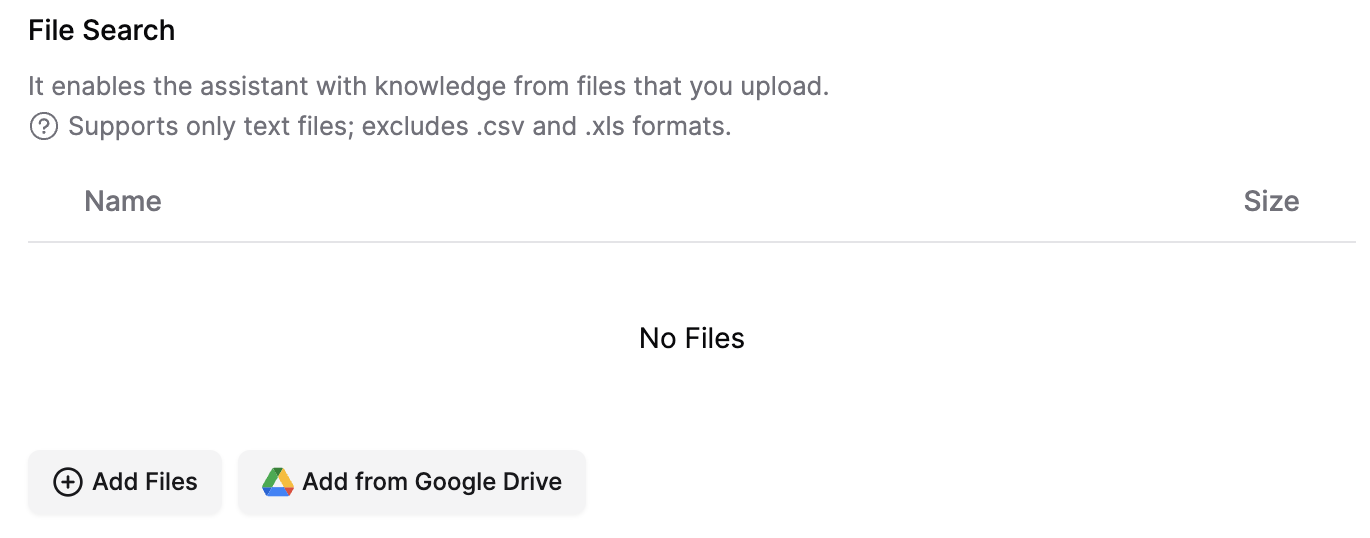
- Select the files to sync and click Add Files.
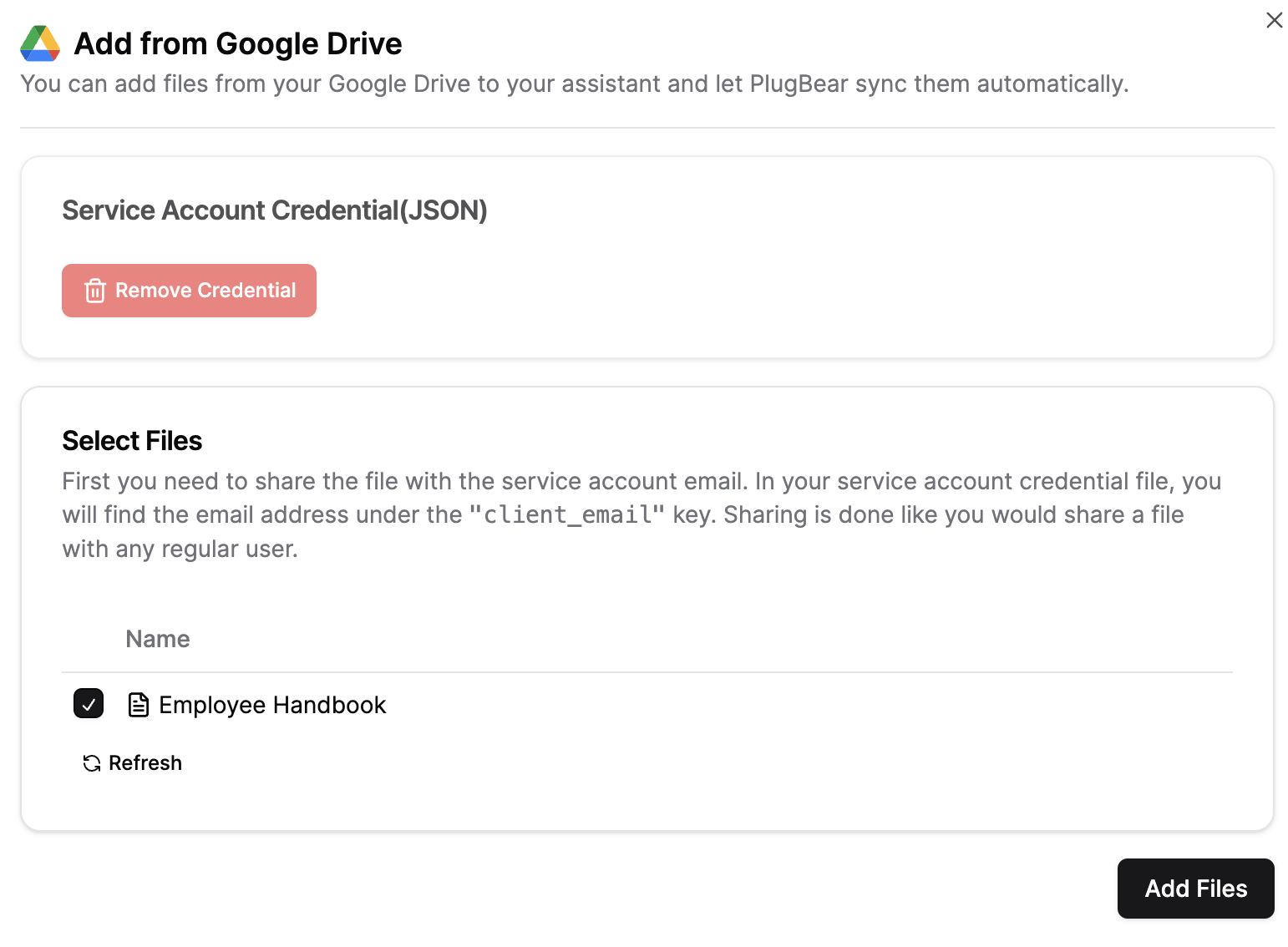
Shared Drives are supported — share the Shared Drive with the service account's email address, and it will have access to sync the files.
What gets synced
- Documents, spreadsheets, and other files you select (including Shared Drive files)
- Content updates are detected and re-synced automatically