Slack
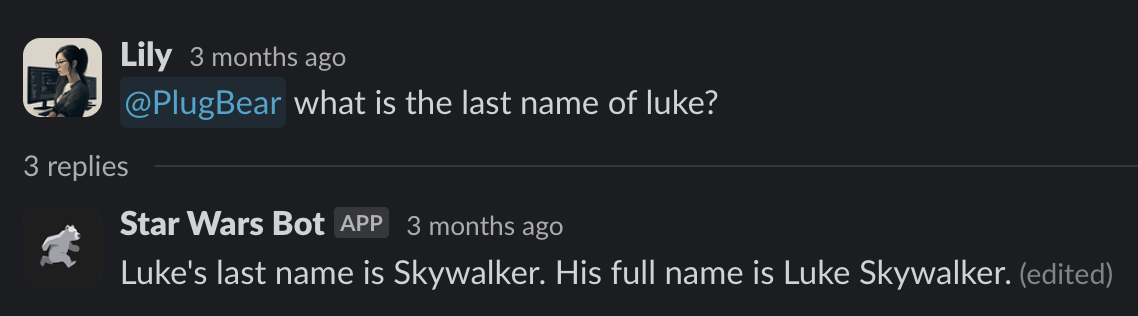
Deploy your Team Agent as a Slack chatbot. Once connected, team members can mention the bot in any channel or send it a DM to get responses powered by your agent's tools and knowledge bases.
How it works
When a trigger event occurs in a connected Slack channel — such as an @mention or a direct message — Runbear forwards the message to your agent. The agent processes the request, executes any connected tools or knowledge-base lookups, and posts the response back to the Slack thread.
Setup
- In the Runbear dashboard, open your agent and go to the Chatbots tab.
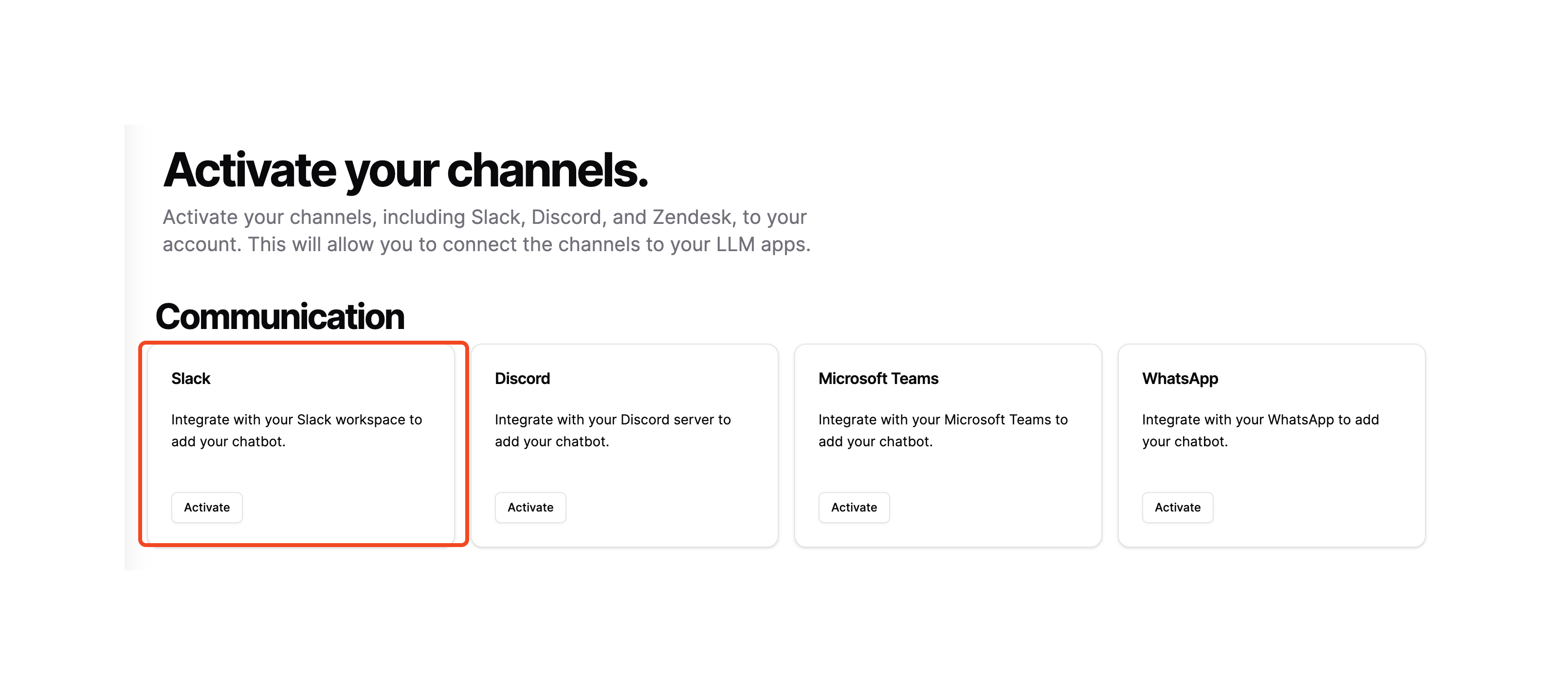
- Click Connect on the Slack tile.
- Click Add Runbear to Slack to install the Runbear bot in your Slack workspace.
- Confirm the correct workspace is selected, then click Add to activate it.
- Invite the bot to any channels where you want it to respond.
- Mention
@Runbear(or your custom bot name) in a channel to start a conversation.
Display the agent in Slack's AI panel
When your agent is installed in Slack, workspace owners and admins can make it available in the Agents & Assistants section of the Slack desktop app. This lets all members discover and use it from the top-right corner of Slack.
For admins
- Open your workspace settings (click the workspace name or Admin icon in the sidebar).
- Navigate to Workspace Settings.
- Scroll to the Agents & Assistants section.
- Enable your agent and save.
For members
- Click your profile picture in the sidebar.
- Select Preferences.
- Go to the Navigation section.
- Under App Agents and Assistants, check or uncheck agents to show or hide them.
Changing the bot icon
You can customize the bot icon to match your brand. The method depends on whether you use the default Runbear bot or a custom Slack bot.
Default Runbear bot
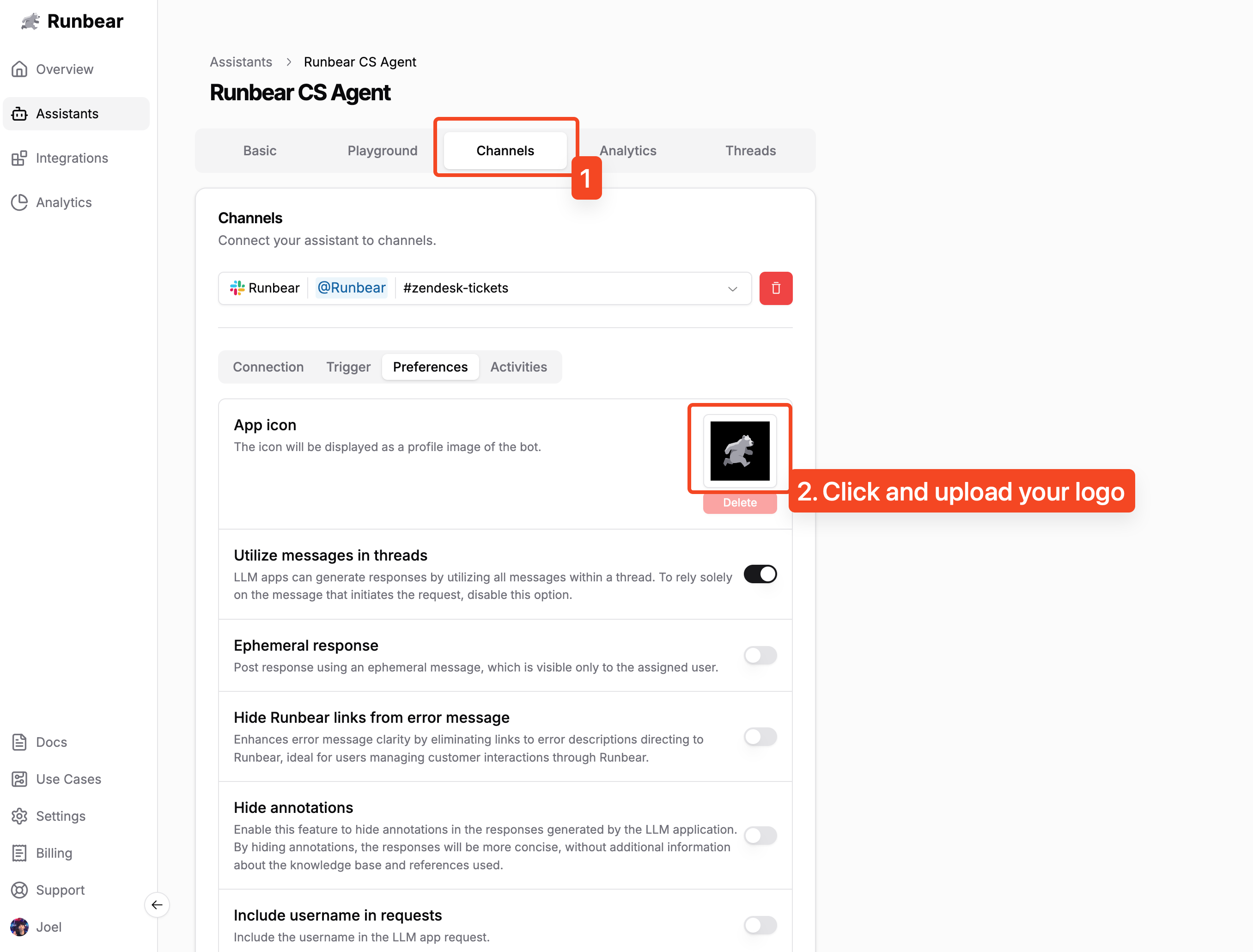
- In the Runbear dashboard, open your agent and go to Chatbots > Preferences.
- Click the icon at the top and upload your preferred image.
Custom Slack bot
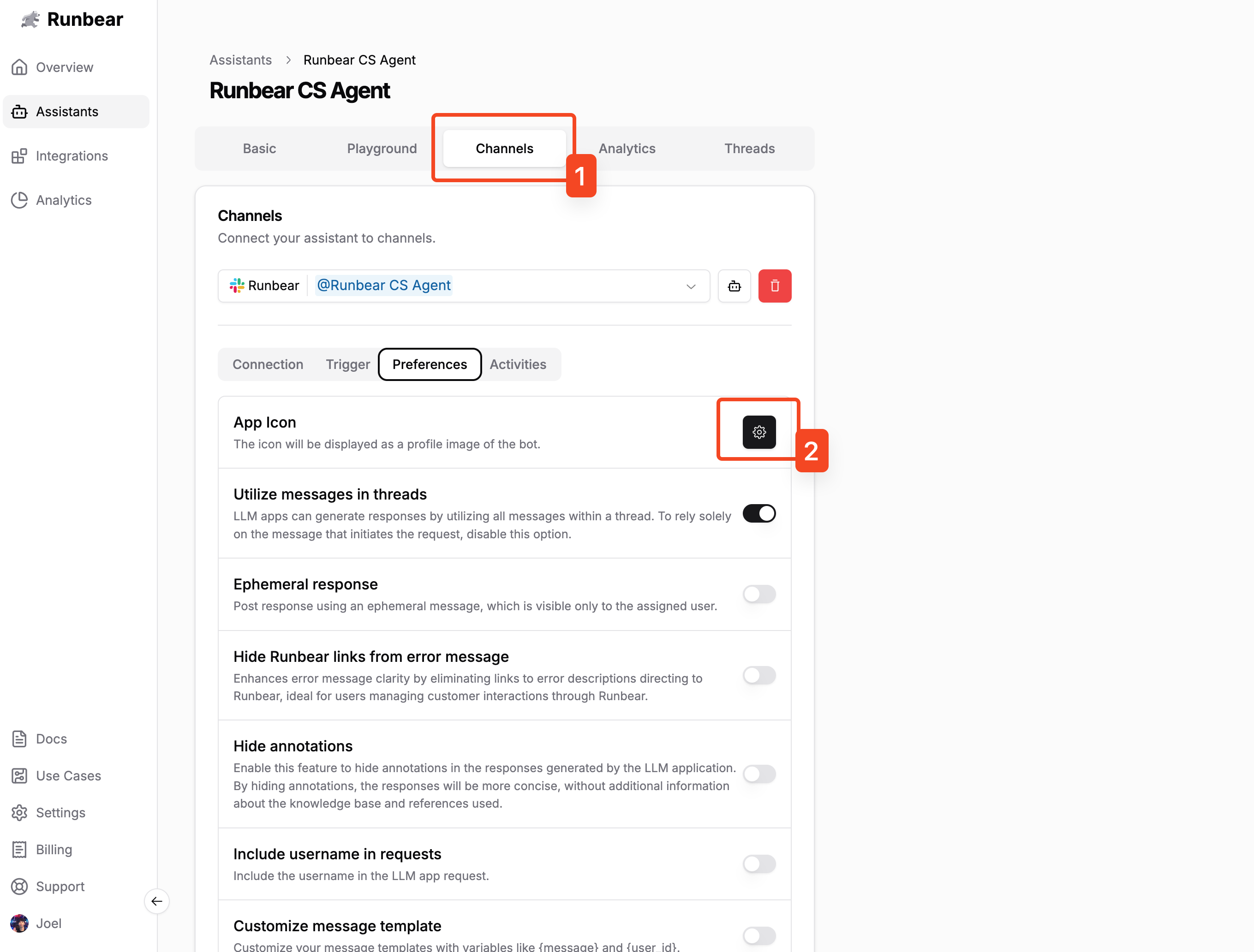
- In the Runbear dashboard, open your agent and go to Chatbots > Preferences.
- Click App Icon Settings.
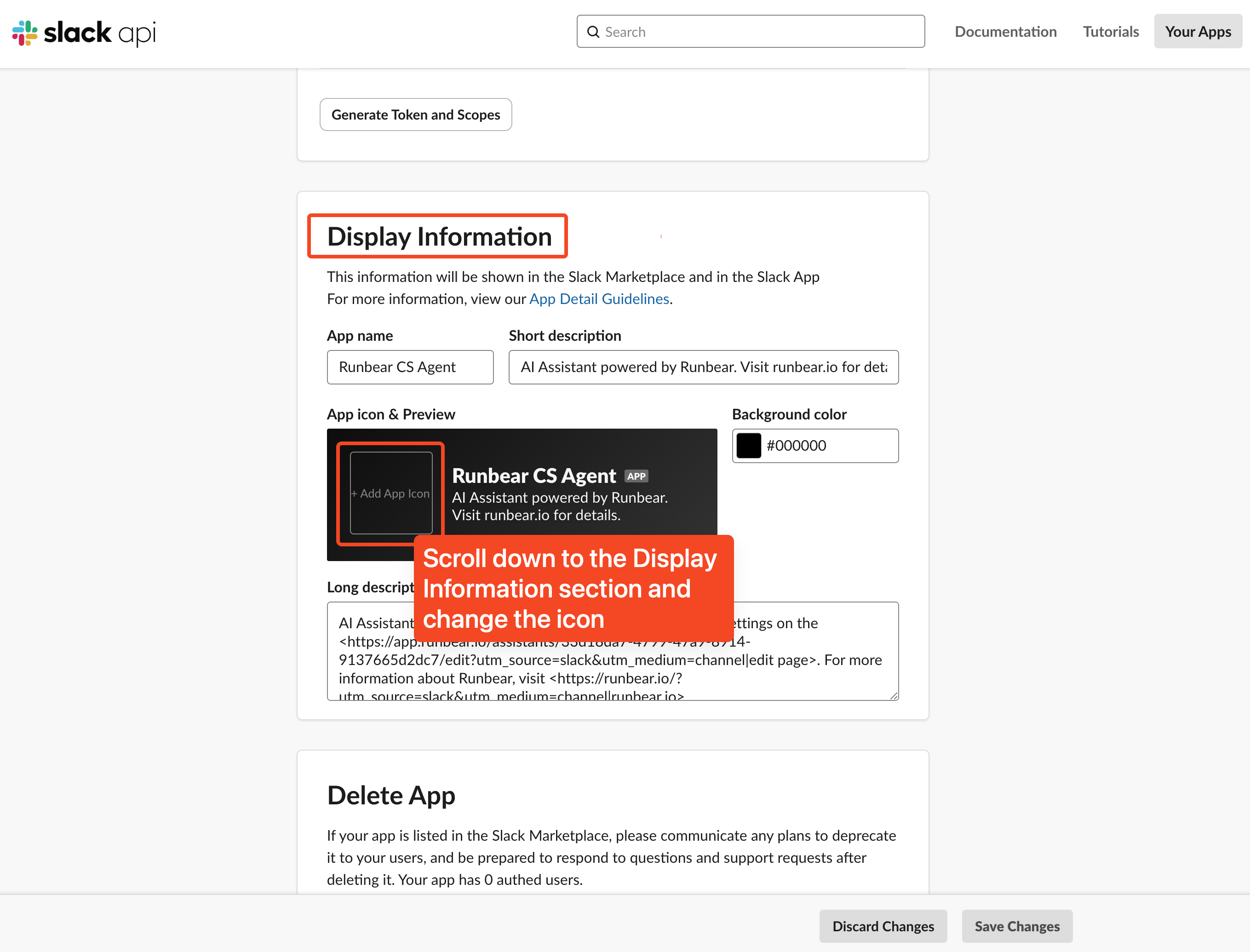
- Scroll to the Display information section and upload your new icon.
Disconnecting
In the Runbear dashboard, go to the Chatbots tab, click the more options menu on the Slack tile, and select Deactivate.