

MS Teams
Deploy your Team Agent as a Microsoft Teams chatbot. Once installed, team members can interact with the agent in team channels and group chats — with optional custom branding.
How it works
Setup
- In the Runbear dashboard, open your agent and go to the Chatbots tab.
- Click Connect on the MS Teams tile — or install directly from Microsoft AppSource.
- In MS Teams, click Add to a Team and choose the team or group chat where you want the bot.
- The Runbear bot will post a card with a Complete Setup button. Click it to go to the Runbear dashboard.
- Enter your Teams name and click Add.
- That's it — the agent is now active in your selected team or group chat.
Branded bot
By default, the bot appears as "Runbear" in Teams. If you want a custom name, icon, and description, you can build a branded bot that works identically but looks like your own app.
Building a branded bot
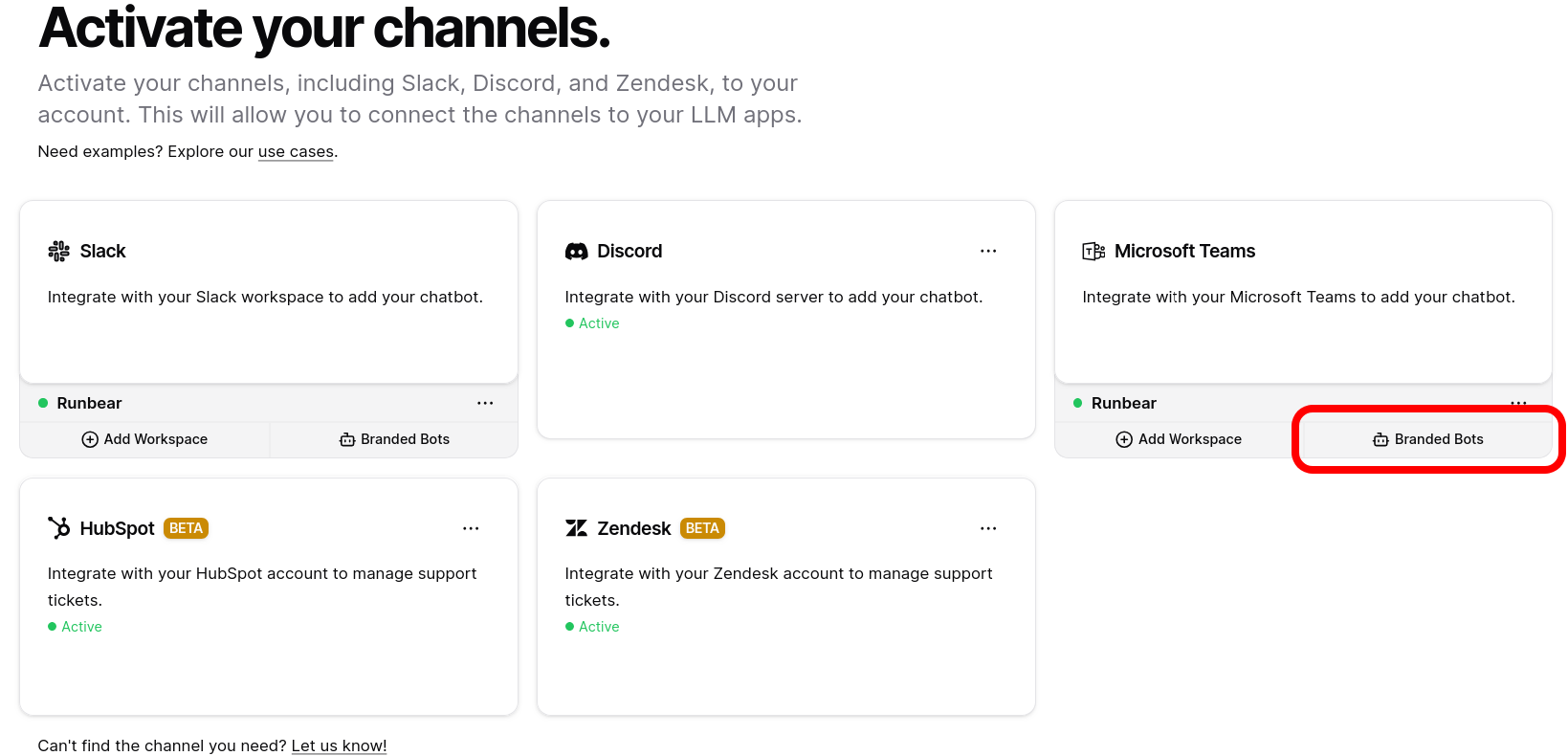
- In the Runbear dashboard, go to the Chatbots tab and click Branded Bots on the MS Teams tile.
- Click Build Bot at the top of the bot management page.
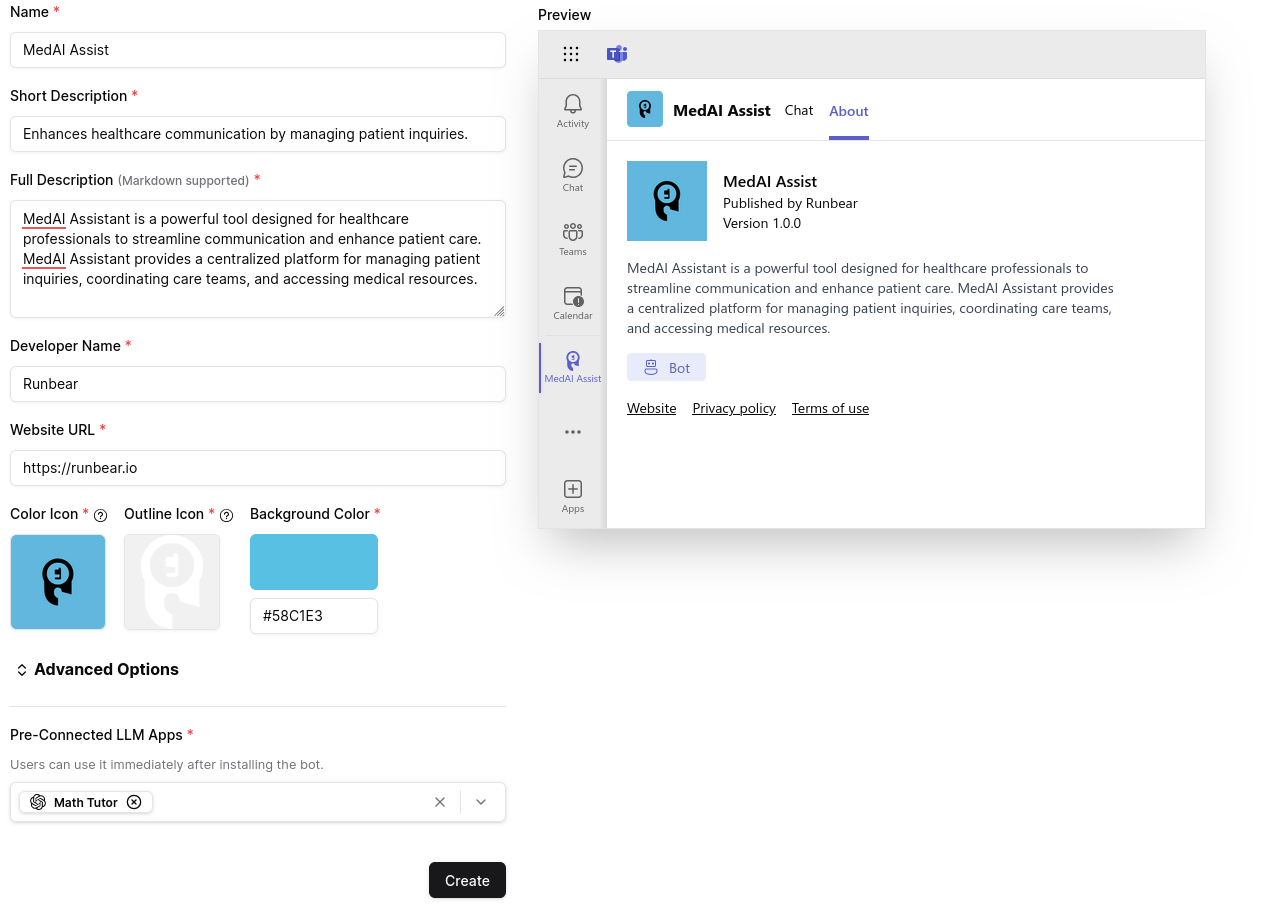
- Fill in the customization form — bot name, icon, and description. Select an agent in the Pre-Connected Agents section so it responds after installation. A live preview shows your customizations.
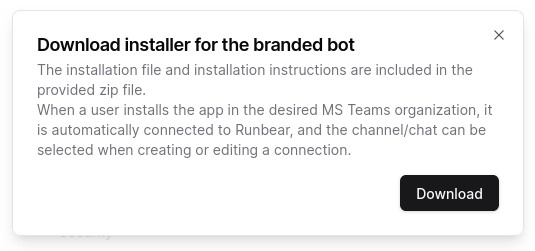
- Click Create. After a few seconds, a dialog appears with a Download button. Download the installation file (zip).
Installing the branded bot
Unzip the downloaded file. Inside you'll find the bot installation file and a detailed installation guide. Follow the guide to install the bot in your Teams organization.
Deleting a branded bot
On the bot management page, click Delete on the bot you want to remove. This action is permanent — the bot will be removed from all Teams organizations where it was installed, and all Runbear connections linked to it will also be deleted.
Troubleshooting
Can't find my team or group chat when connecting
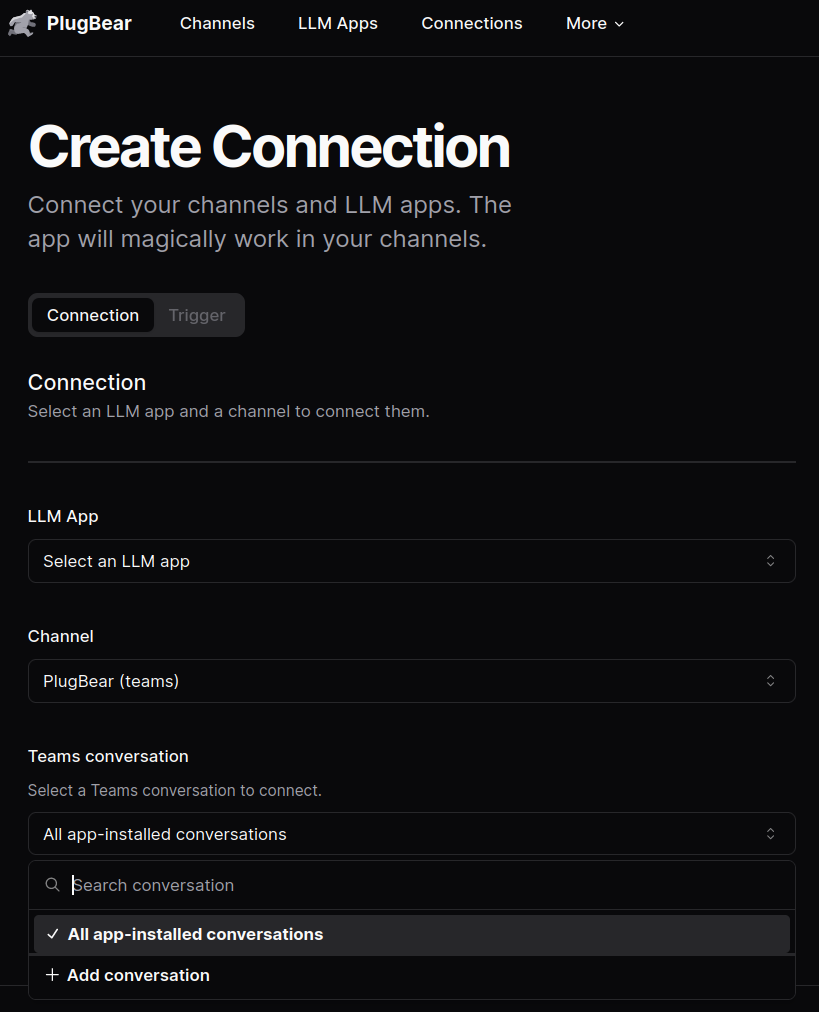
If your team or group chat doesn't appear during setup, the Runbear app likely isn't installed there yet. Click + Add conversation in the dropdown and install the app in your desired team or group chat. Refresh the connection page afterward.
App installed, but no "Complete Setup" message
In Teams, you can install the same bot into a team or group chat more than once. If you previously installed the bot, you may not receive another "Complete Setup" message. In that case, skip the setup step and proceed directly to connecting your agent.